Docker Container Keeps Restarting? Find and Fix the Cause
A container that repeatedly restarts is usually reporting a deeper problem. This guide shows how to read Docker's exit information, investigate logs, identify memory-related failures, and apply the right fix without hiding the underlying issue.
Khalil Ur Rehman
Author
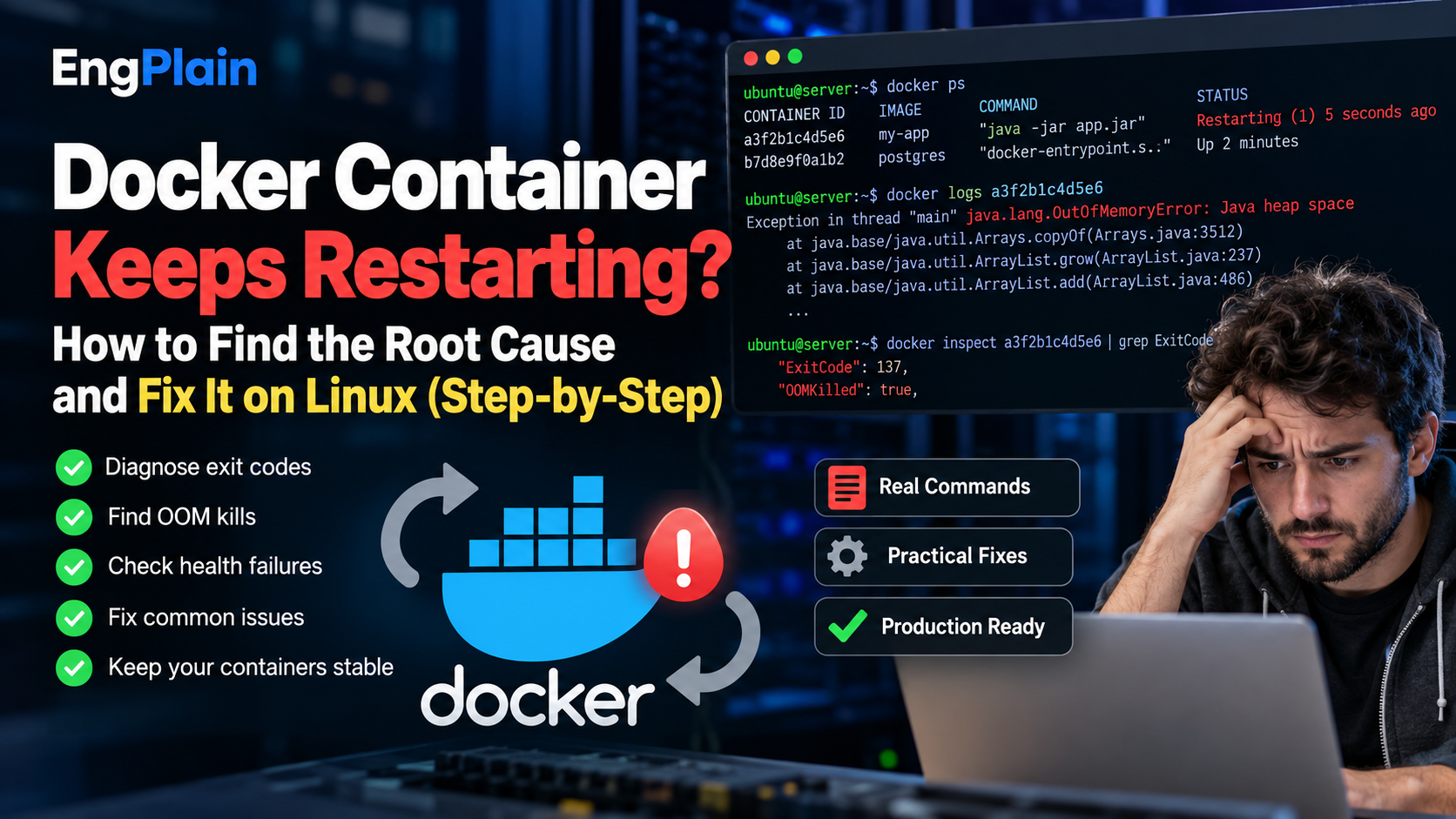
Docker Container Keeps Restarting? How to Find the Root Cause and Fix It on Linux
A Docker container that keeps restarting can be frustrating, especially when the application worked perfectly during development.
You deploy the container, check its status, and discover something unexpected:
docker psInstead of showing a healthy running application, Docker reports:
Restarting (1) 5 seconds agoThe immediate temptation is to restart Docker, rebuild the image, or increase the container's memory limit.
Those actions might temporarily change the symptoms, but they rarely explain what went wrong.
A better approach is to investigate why the container's main process exited before changing anything.
This guide walks through a practical troubleshooting workflow for Linux-based Docker environments. It covers application crashes, exit codes, memory failures, restart policies, and health checks. It also includes a reproducible example that you can run safely in a test environment.
1. Understand What Docker Is Actually Restarting
A Docker container normally remains running while its main process is active.
For example, a container running a Java application might start with:
java -jar app.jarIf that Java process terminates, the container stops.
Whether Docker starts it again depends on the configured restart policy.
Common restart policies include:
no: Docker does not automatically restart the container.
always: Docker attempts to restart a stopped container, subject to its restart-policy behavior.
unless-stopped: Similar to
always, but respects containers intentionally stopped by an administrator.on-failure: Docker restarts the container when its main process exits unsuccessfully, with an optional retry limit.
A restart policy is useful for recovering from temporary failures. However, it cannot repair broken application configuration, missing credentials, or a database connection that consistently fails.
If the same error occurs every time the process starts, the restart policy simply repeats the failure.
2. Check the Container's Current Status
Start by identifying the affected container.
docker ps -aThis command lists running and stopped containers, including their status and names.
Look for entries such as:
Restarting (1) 5 seconds agoor:
Exited (137) 2 minutes agoThe number in parentheses is the exit code from the container's main process.
For more precise information, inspect the container directly:
docker inspect my-app \
  --format='{{.State.Status}}'
Check the exit code:
docker inspect my-app \
  --format='{{.State.ExitCode}}'
Check whether Docker recorded an out-of-memory kill:
docker inspect my-app \
  --format='{{.State.OOMKilled}}'
Finally, inspect the restart count:
docker inspect my-app \
  --format='{{.RestartCount}}'
Replace my-app with your container name.
These commands help answer four important questions:
Is the container running, stopped, or restarting?
What exit code did the process return?
Did Docker record an out-of-memory termination?
How many times has Docker restarted the container?
Do not change the restart policy until you have collected this information. Otherwise, you risk obscuring the original failure.
3. Read the Application Logs Before Rebuilding Anything
Container logs are usually the fastest way to identify an application-level problem.
Run:
docker logs --tail 100 my-appFor timestamps:
docker logs --timestamps \
  --tail 100 my-app
You may discover messages indicating:
Missing environment variables.
Incorrect database credentials.
Application configuration errors.
Permission-denied exceptions.
Missing files or directories.
Failure to bind to a required port.
Unhandled application exceptions.
For example, a Spring Boot application might report:
Failed to configure a DataSourceThis points toward database configuration rather than a Docker engine problem.
Rebuilding the image without fixing the configuration is unlikely to help.
If the application produces no useful logs, investigate its entrypoint, command, file permissions, and whether it writes logs to standard output or standard error.
A container that exits immediately without logging anything may be failing before the application fully initializes.
4. Understand Docker Exit Codes
Exit codes are useful diagnostic clues, but they are not complete explanations.
Exit code 1: General application failure
Exit code 1 commonly indicates that the main process failed.
Possible causes include:
Invalid application configuration.
Missing environment variables.
Unhandled exceptions.
Failed startup scripts.
Missing dependencies.
The next step is to examine application logs and startup configuration.
Exit code 125: Docker could not run the container
Exit code 125 generally indicates a failure involving the Docker command or daemon when attempting to run a container.
For example, an invalid option passed to docker run can cause the command to fail before the container starts.
This is different from an application process exiting with code 1.
Exit code 137: Process terminated by SIGKILL
Exit code 137 typically means the process was terminated by signal 9, SIGKILL.
One possible explanation is an out-of-memory kill.
However, exit code 137 does not automatically prove that the container ran out of memory.
A process can also receive SIGKILL for other reasons, including a forced termination.
Check the recorded OOM status:
docker inspect my-app \
  --format='{{.State.OOMKilled}}'
If Docker reports true, investigate memory pressure and configured memory limits.
You can also inspect kernel messages on Linux systems where you have sufficient permissions:
sudo journalctl -k --since "30 minutes ago"Search the output for memory-related termination messages.
5. Reproduce a Restart Loop in a Safe Test Environment
Before troubleshooting a production incident, it helps to understand how a restart loop behaves.
The following example creates a deliberately failing container using the official Alpine Linux image.
Important: This is a demonstration for a disposable test environment. The commands are reproducible, but no actual execution results are claimed here.
First, create the container:
docker run -d \
  --name restart-demo \
  --restart=on-failure:3 \
  alpine:3.20 \
  sh -c 'echo "Application startup failed"; exit 1'
The command starts a shell that prints an error message and exits with code 1.
Because the restart policy is on-failure:3, Docker is configured to retry the failed container up to three times.
Check its status:
docker ps -a \
  --filter name=restart-demo
Then inspect its logs:
docker logs restart-demoYou should expect the startup failure message to appear repeatedly as the restart attempts occur.
Inspect the restart count and exit code:
docker inspect restart-demo \
  --format='Restarts={{.RestartCount}} Exit={{.State.ExitCode}}'
After the configured retry attempts have been exhausted, the container should remain stopped.
Fix the failure
The example fails because its main process explicitly executes:
exit 1To demonstrate a successful process, remove the failed test container:
docker rm restart-demoCreate a corrected version:
docker run -d \
  --name restart-demo \
  --restart=on-failure:3 \
  alpine:3.20 \
  sh -c 'echo "Application started"; exec sleep 3600'
This time, the main process remains active for the duration of the sleep command.
Verify its status:
docker ps \
  --filter name=restart-demo
Inspect its restart count:
docker inspect restart-demo \
  --format='Restarts={{.RestartCount}} Status={{.State.Status}}'
For this new container, the expected result is a running state and zero restarts shortly after startup.
The important lesson is not that a restart policy is dangerous. It is that the underlying process failure must be corrected before automatic restarts can provide meaningful resilience.
Clean up the test environment:
docker rm -f restart-demo6. Investigate Memory-Related Container Failures
Memory pressure is another important cause of container termination.
A container may work normally with a small workload but fail when processing larger requests, importing data, or performing memory-intensive operations.
Start by checking live resource usage:
docker statsThis displays resource information for running containers, including CPU and memory usage.
Next, inspect the configured memory limit:
docker inspect my-app \
  --format='{{.HostConfig.Memory}}'
Docker reports this value in bytes. A value of zero generally means no explicit Docker memory limit was configured.
Be aware that a container without an explicit memory limit is still constrained by available host memory and potentially other system-level limits.
If the application is being terminated because it exceeds a configured memory limit, you have several options:
Reduce the application's memory consumption.
Investigate memory leaks or unexpectedly large workloads.
Adjust runtime memory settings, such as the Java heap size.
Increase the container memory limit if the host has sufficient capacity.
Review concurrent workloads sharing the same server.
For a Docker Compose service, a memory limit can be configured as follows:
services:
  app:
    image: my-app:latest
    mem_limit: 1g
    restart: unless-stopped
This is an illustrative configuration. The appropriate memory limit depends on the application's measured requirements.
Increasing memory is not always the right fix. If an application has a memory leak, additional memory may simply delay the next failure.
7. Check Health Checks Without Confusing Them With Restart Policies
Docker health checks help determine whether an application is functioning as expected.
For example, a web application might respond to an HTTP request on a health endpoint.
A Compose health check could look like this:
services:
  app:
    image: my-app:latest
    healthcheck:
      test:
        - CMD
        - curl
        - -f
        - http://localhost:8080/health
      interval: 30s
      timeout: 5s
      retries: 3
      start_period: 30s
This configuration assumes the image contains curl and the application exposes /health on port 8080.
If the check fails repeatedly, Docker can mark the container as unhealthy.
However, an important distinction is often overlooked:
Docker's standard restart policies do not automatically restart a container simply because its health status becomes unhealthy.
A health check failure and a process exit are separate conditions.
If a container is unhealthy but still running, investigate the application endpoint, dependencies, and health-check configuration before assuming that a restart policy is malfunctioning.
8. Review Restart Policies in Production
Automatic restarts are valuable, but they should be selected deliberately.
Consider a production service that depends on a database.
If the database is temporarily unavailable, the application might exit during startup. A restart policy may allow it to recover after the database becomes accessible.
But if the database password is incorrect, restarting the container indefinitely will not solve the problem.
A practical production approach includes:
Choosing restart policies according to the application's recovery behavior.
Implementing graceful shutdown handling.
Using meaningful application health checks.
Monitoring restart counts and container exits.
Recording useful startup errors.
Alerting when a service repeatedly fails.
Keeping application secrets and configuration under controlled management.
For services managed by Kubernetes, recovery behavior is different because Kubernetes uses its own controllers and probes.
Do not assume that Docker restart policies and Kubernetes restart behavior are interchangeable.
9. A Practical Troubleshooting Sequence for Engineers
When a container unexpectedly enters a restart loop, use a consistent investigation sequence.
First, establish what happened.
Run:
docker ps -a
docker logs --tail 100 my-app
Second, collect Docker's recorded state.
docker inspect my-app \
  --format='{{json .State}}'
Third, examine the restart configuration.
docker inspect my-app \
  --format='{{json .HostConfig.RestartPolicy}}'
Fourth, investigate the most likely failure category.
For application errors, review startup configuration and logs.
For suspected memory failures, inspect OOM status and system memory pressure.
For missing files, inspect mounts and permissions.
For dependency failures, test connectivity and credentials.
For unhealthy containers, verify the health-check command and endpoint.
Finally, verify the fix.
A successful deployment should not be judged only by whether docker ps shows the container as running.
Confirm that the application is responding correctly, the expected dependencies are available, and the restart count is no longer increasing.
Monitor the service long enough to cover the workload that originally triggered the failure.
10. What to Do Before Closing the Incident
A restart loop is a symptom. The underlying cause may be an application bug, a configuration error, a resource constraint, or an unavailable dependency.
Once the immediate problem is resolved, document the incident.
Record:
The observed error and exit code.
The relevant application logs.
The root cause supported by evidence.
The configuration or application change applied.
The commands used to verify recovery.
Any monitoring or alerting improvement needed.
This record becomes especially useful when similar failures occur across staging and production environments.
It also helps teams avoid repeating the same troubleshooting work during future incidents.
Final Thoughts
Docker makes application deployment easier, but it does not eliminate application failures.
When a container repeatedly restarts, resist the urge to rebuild the image or increase resource limits without evidence.
Start with the container state, exit code, and application logs. Determine whether the main process crashed, Docker encountered a startup problem, or the system terminated the process.
Then fix the underlying issue and verify that the application remains healthy under its expected workload.
The goal is not simply to make a container run again. It is to understand why it stopped and prevent the same failure from returning.